
Subpage
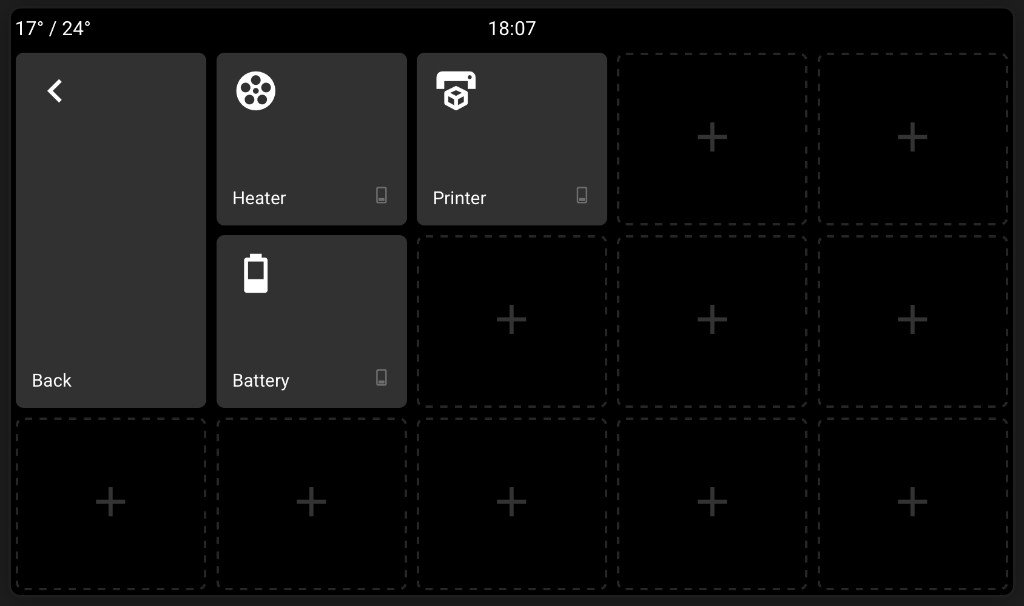
A Subpage card works like a folder. Tapping it on the panel opens a new page with its own set of cards. This is useful for grouping related controls together, such as all the lights in one room, without filling up the home screen.
Opening any named subpage shows its label on the left of the clock bar, both on the panel and in the web editor preview, replacing the usual item there. Returning home restores that item.
A subpage has one fewer usable slot than the home screen because it includes a Back card. Subpage cards on the home screen can show a small chevron marker so you can spot them easily. You can turn this marker on or off with Screen: Subpage Chevron in the Clock Bar settings.
Setting Up a Subpage
- Select a card on the home screen and change its type to Subpage.
- Choose a subpage Type. Generic is a normal folder. The other presets make the home-screen Subpage tile look and behave like the thing it represents, such as Lights, Switch, Alarm, Cover, Garage Door, Lock, Vacuum, Lawn Mower, Weather, Sensor, or Camera / Image, before opening the detailed subpage.
- Set a Label and Icon if you want them.
- Click Edit Subpage in the card settings, or right-click the card and choose Edit Subpage.
- The preview switches to the subpage. Add and arrange cards here the same way you would on the home screen.
- Click the Back card to return to the home screen.
You can also right-click an empty space on the home screen and choose Create Subpage.
Subpages can contain Switch, Lights, Action, Local Action, Option Select, Webhook, Trigger, Sensor, Local Sensor, Doors & Windows, Presence, Slider, Fans, Vacuum, Lawn Mower, Cover, Garage Door, Lock, Alarm, Date & Time, Clock, World Clock, Weather, Camera, Media, Climate, Internal Switches, and Screen Lock cards. Subpages cannot contain another Subpage card.
Automate Panel Navigation and Controls
Home Assistant actions let an automation put the panel on the page or controls that matter at that moment—for example, show a room's light controls when someone arrives, or return the panel to its home screen after a task. Find them in Developer Tools > Actions after the panel firmware registers them. Replace hall_panel below with your ESPHome device name.
| Action | Why use it | Data |
|---|---|---|
navigate | Simulate tapping a home-screen card, or return home. Useful for jumping to a card from a routine or dashboard button. Available on P4 and S3. | target: card label, slot:3, or home |
open_modal | Show an entity's existing control popup without toggling it or running a command. Useful for surfacing controls at the right time. Available on P4 and S3. | entity_id: entity on a supported control card |
close_modal | Dismiss the popup and reveal the page underneath. | None |
open_subpage | Open a labeled Subpage without activating another card. Useful when an automation should show a group of related controls safely. | label: Subpage card label |
close_subpage | Return to the home screen; also closes a popup on that subpage. | None |
Example action to show the office light controls from an automation, such as one triggered by presence:
action: esphome.hall_panel_open_modal
data:
  entity_id: light.office_ceiling
navigate behaves like a tap: targeting an Action, toggle, webhook, lock, or other command card can run its configured action. Use open_subpage when you only want to open a Subpage. For open_modal, the entity must have a supported control card configured on the panel; this action displays its controls but does not operate the entity. Labels are case-insensitive; if duplicates exist, the first matching card opens. Opening actions wake the panel. Screen Lock and an active alarm display takeover prevent remote opens.
These are actions, not entities. If a newly installed action is missing from Developer Tools > Actions, update the panel firmware and reload the ESPHome integration. The panel logs rejected requests; Home Assistant actions do not return a result.
Show State
Turn on Show State if you want the Subpage card on the home screen to show state.
Subpage cards can show state in three ways:
- Icon uses the card's Icon as the off icon and shows an On Icon when active. Enter a State Entity to track a specific Home Assistant entity, or leave it blank to keep the existing automatic behavior where the Subpage card lights up if any active-capable card inside it is on, open, playing, unlocked, or otherwise active.
- Numeric shows a Home Assistant sensor value in the large number style used by Sensor cards. Choose a Sensor Entity, Unit, and Unit Precision.
- Text shows a Home Assistant sensor state where the card label normally appears. Choose a Sensor Entity.
Read-only cards such as Sensor, Date, Clock, World Clock, and Weather do not affect Icon mode. Numeric and Text modes use the sensor entity you enter on the Subpage card. They do not automatically count the cards inside the subpage; use a Home Assistant helper or template sensor for that.
Moving Cards Between Pages
You can cut, copy, and paste cards between the home screen and subpages. Right-click a card, choose Cut or Copy, then right-click an empty space on the destination page and choose Paste.
Copying Cards Between Controllers
To copy a card to another Basalt panel:
- Right-click the card and choose Copy Code. If you selected several cards, choose Copy Cards as Code.
- The code is selected automatically. Copy it with Ctrl+C or Command+C.
- Open the setup page for the other controller, right-click an empty position, and choose Paste Code.
- Paste the code into the box and choose Paste.
Card codes include the card size and any attached subpage. When the destination screen is a different size, Basalt finds suitable empty positions and may reduce a large card to a single tile. The complete group is checked before anything is saved, so a multi-card transfer is not partly applied when there is insufficient room.
Cards that use an internal relay, local action, or local sensor may need to be edited for the destination controller. Card codes can also contain private webhook URLs or headers, so keep them private and do not post them publicly.